Switch the Workspace Layout
On any Issue / Research page you can use the top-bar "Switch workspace layout" button to flip between three workspace shapes — pure chat, VSCode editing, or a native file editor. The preference is saved in your browser and persists across visits.
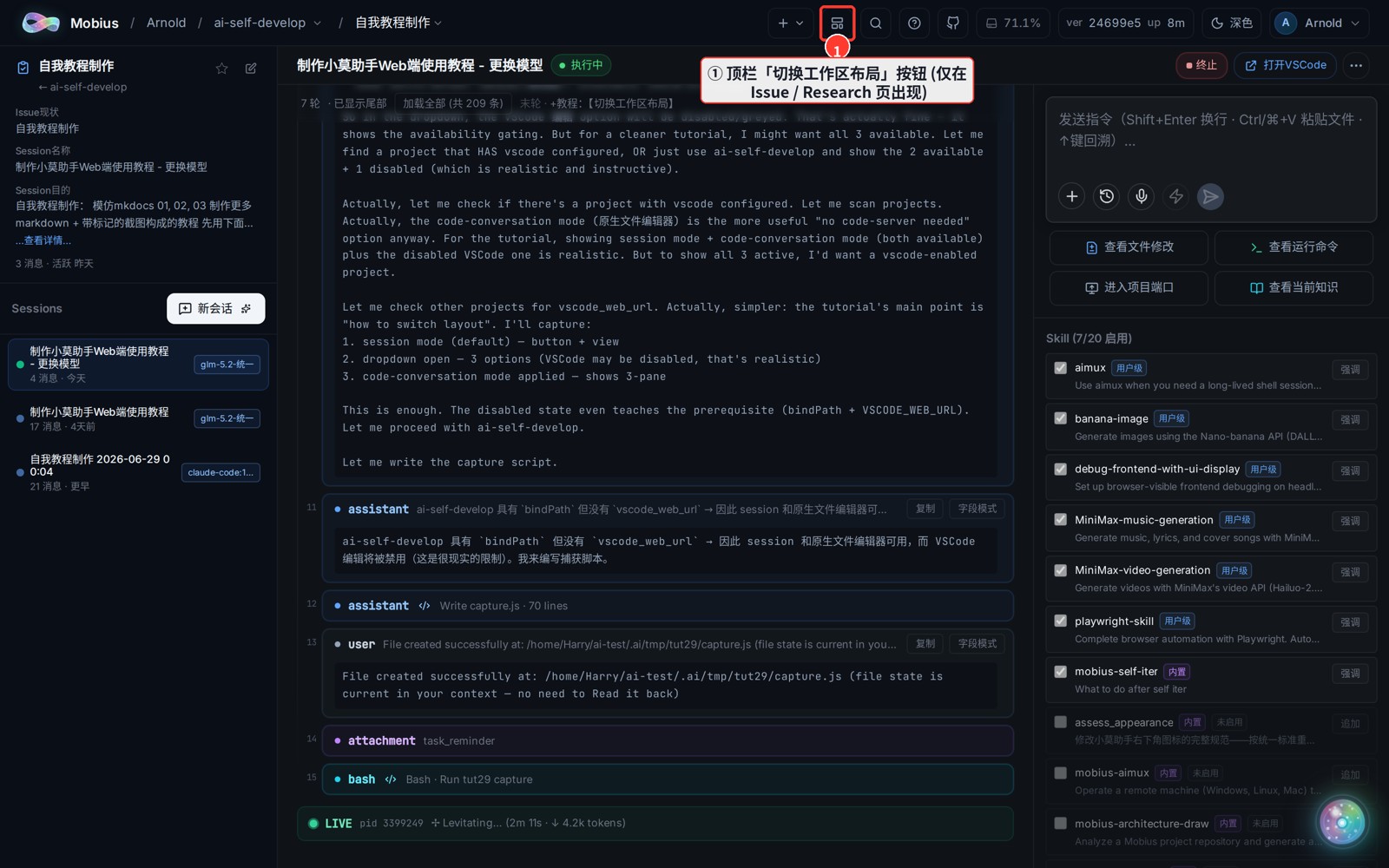
1. Find the layout button in the top bar
- Open any Issue or Research page (with a Session selected) and click the "切换工作区布局" ("Switch workspace layout") icon in the top bar.
2. Pick a layout
- Three modes appear:
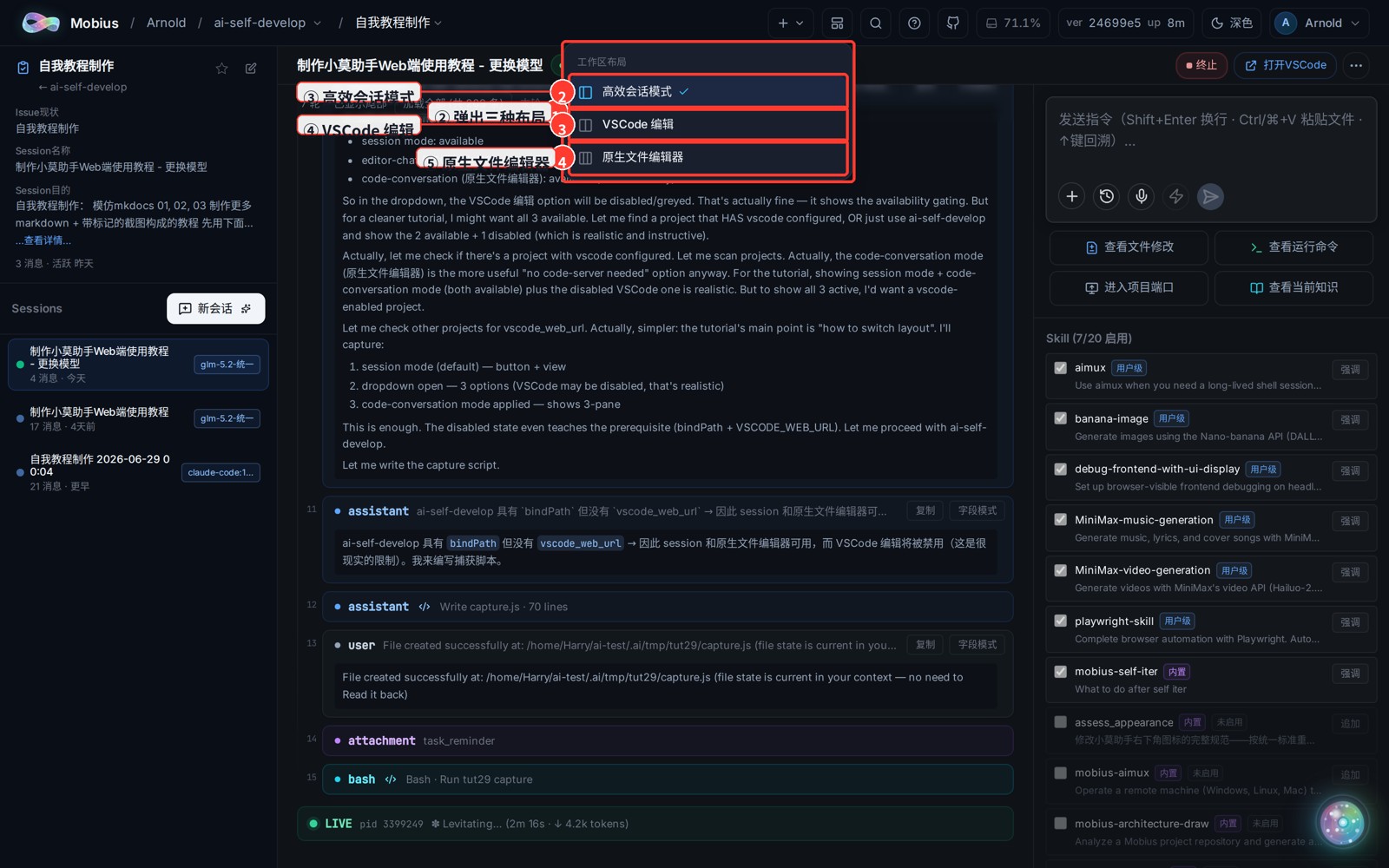
| Mode | Description | Available when |
|---|---|---|
| 高效会话模式 (Chat mode) | Left Issue/Session sidebar + right chat area, focused on driving the agent | Always |
| VSCode 编辑 (VSCode edit) | Left built-in VSCode editor + right chat — edit code while chatting | Project has a bound path and a web editor configured (VSCODE_WEB_URL) |
| 原生文件编辑器 (Native file editor) | Left file browser + middle code preview + right chat (no code-server needed) | Project has a bound path |
When an option is greyed out, hover it to see why (e.g. "project not bound to a path", "web editor not configured").
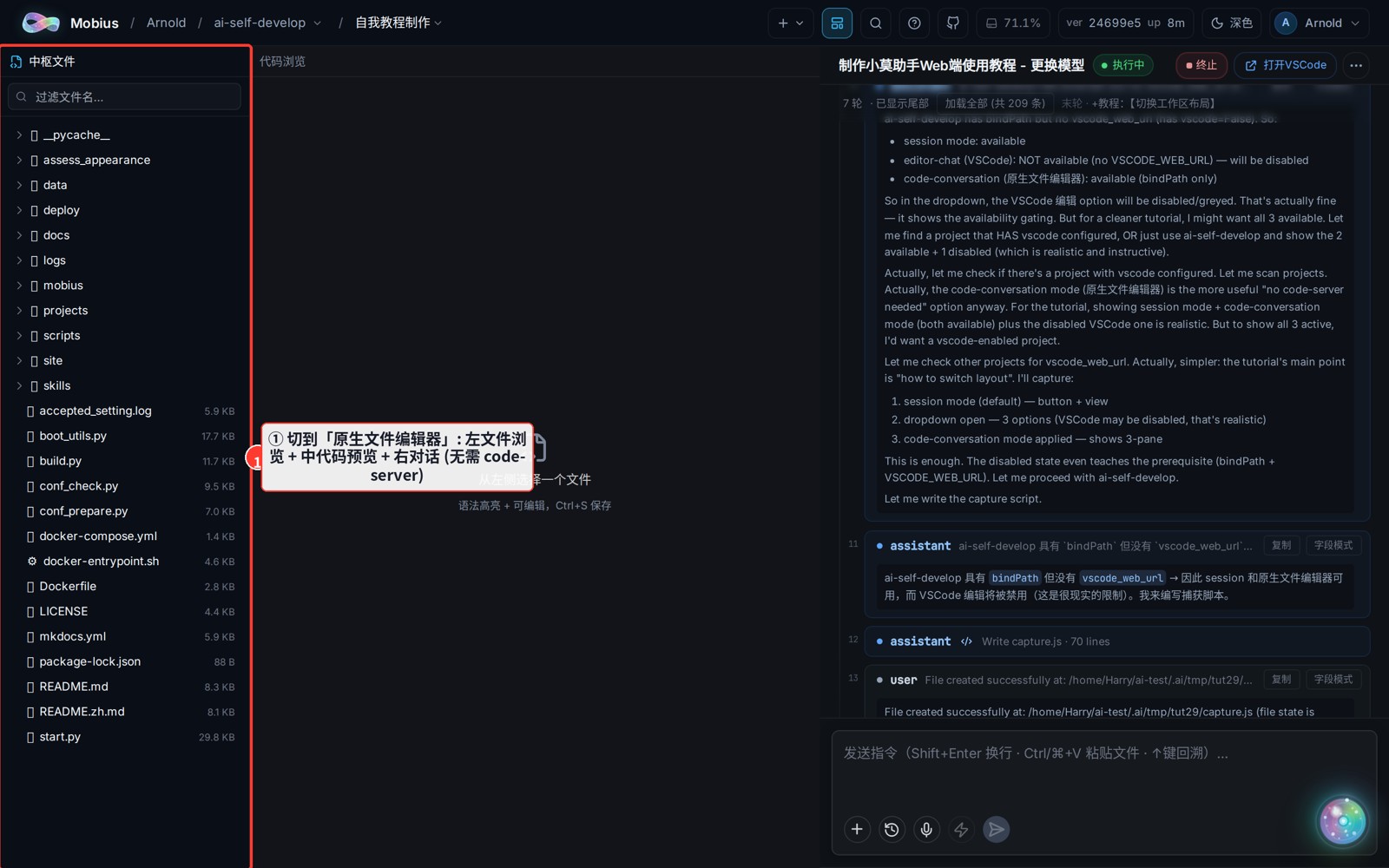
3. After switching to the native file editor
- The left side is a native file browser, the middle previews/edits code, and the right keeps the chat — handy when you don't want to spin up code-server but still need to view and edit code.
Tip
- The layout is a global preference (saved per browser) and applies on every Issue / Research page you open.
- A few pure-Git Issues (where sessions only run
gitcommands) hide the layout entry on purpose, to avoid a pointless "code-left, chat-right" view. - Mobile, the user home, and the project home don't show the layout toggle (code-chat is a desktop capability).